2015年1月28日星期三

How often and where does Vigica attend Electronics Expo

Is proud to inform you that Vigica now is showing the Andrid TV Box &DVB in the CSTB 2015 Croscus Expo 2015. If you are interested, be sure to remember to visit our booth 4-900. We are honored to meet you then.


Vigica attend not only Expo in Russia, also in Hong Kong China Souring Far.
Every April and October of the year, Vigica attend Electronics Expo in Hong Kong, some years attended in Guangzhou, Dubai and Russia.


Exhibition always gives Vigica a good resources and the correct direction so that theVigica Android TV BOX known by most of the world.

If you want know much more about Vigica, you can vigica www.vigica.cc

2015年1月27日星期二

How to input CCCam for your vigica C60S & C70S

Now with the stable and special function on Vigica dvb products compared with other android tv box, vigica c60s and vigica c70s is more and more popular in market.


After myself testing and useing, here i would like to share something about this box, as below:

How to input your cccam account for your vigica c60s and vigica c70s


Step 1

Open the box, and enter to this main interface


Step 2:

When you come to Installation part, press OK to enter, then you will come to below picture, pay attention, please do not push any buttom first when come to this part, please do as step 3 instruction.


Step 3:
Directly press the remote control with 111111 , you will see cccam option, put the red button on the remote to add your CCCam account Press the OK button to save the account and then return to the previous menu.


Step 4
Then you can see as below, your CCCam account is successful connected


Step 6:

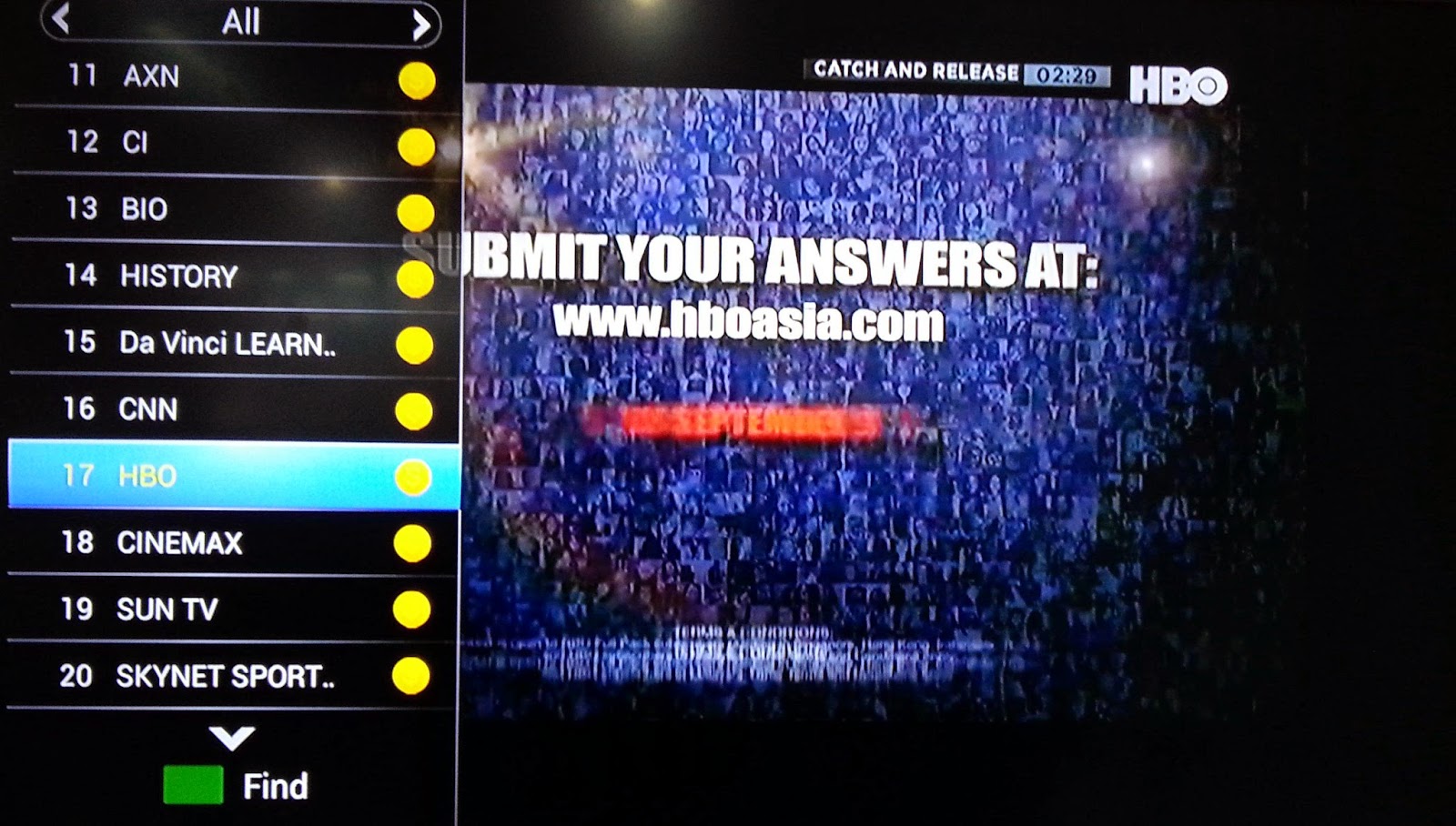
After connecting, please setup your box, you will find that now you are  able to watch the encryption channels. As below, wonderful !

2015年1月26日星期一

Android DVB-S2 Vigica C60S Receiver XBMC Dobly Android TV Box

Android DVB-S2 Vigica C60S Receiver Android TV Box XBMC Dobly Smart TV Box

How to Turn on the new Android TV Box 
Some of my friends buy a new network TV set-top box , but they dont know how to boot , at last causing a lot of problems. 
There is a set of tutorials to tell you how to use network TV set-top box correctly .
l

1,Using the supplied power adapter , power connector into the hard disk player .

2,Open HD network player movie switches

3,Find the remote control, press the button on the remote control of the film , 
after the player front panel LED turn began to show .

4,The boot HD Network Media Player panel displays Please wait ...... 

5,Completely turned our TV manufacturers the opportunity to display the player 
  LOGO 

6,At this time  screen appears when you have a normal boot, if not normal, it 
should be a display resolution is set too high , press the format button on the
remote control to select the appropriate resolution.

We only install the above steps correctly connected hard disk player, you can
boot. Today players boot setup steps on here ! Continue to update tomorrow. 
thank you to enjoy !

How To Use U disk Of HD IP Set-top Box

Many of my friends bought a high-definition set-top box only occasionally used for network onlinewatch TV on the Internet. Because the general network player manufacturers will recommend somehigh-definition movies in home, our home network bandwidth is generally 4M, for the 1080P HDmovie, it may be card. So we try to use U disk or removable hard disk to play the downloaded HD movies!


Many people are enough to buy online HD network player, watching the seller's baby, a lot offeatures, but novices will not use most of today for everyone explains how to perform some network player U disk player!

This is our tutorial to use U-disk, U disk is no friend can use the phone card reader plus


1, U disk into the hard disk player

  2the player idle screen, go to the File Manager window, click OK to open

3. Use the arrow keys on the remote control to select the USB mode, select the U disk name!

 4, in the U disk playback mode selected stateclick OK

 5. Select the arrow keys on the remote controlwe want to find movies or videopress the OK button. To play video!

HD Network Media Player to use U disk to play HD movies on the end of the tutorial


More information,please visit www.vigica.cc